
Here’s a step-by-step guide for subscribing to Easy Earn from your Bybit Pay dashboard and enabling the auto-deduction of your holdings in the Flexible Term for Bybit Pay payments.
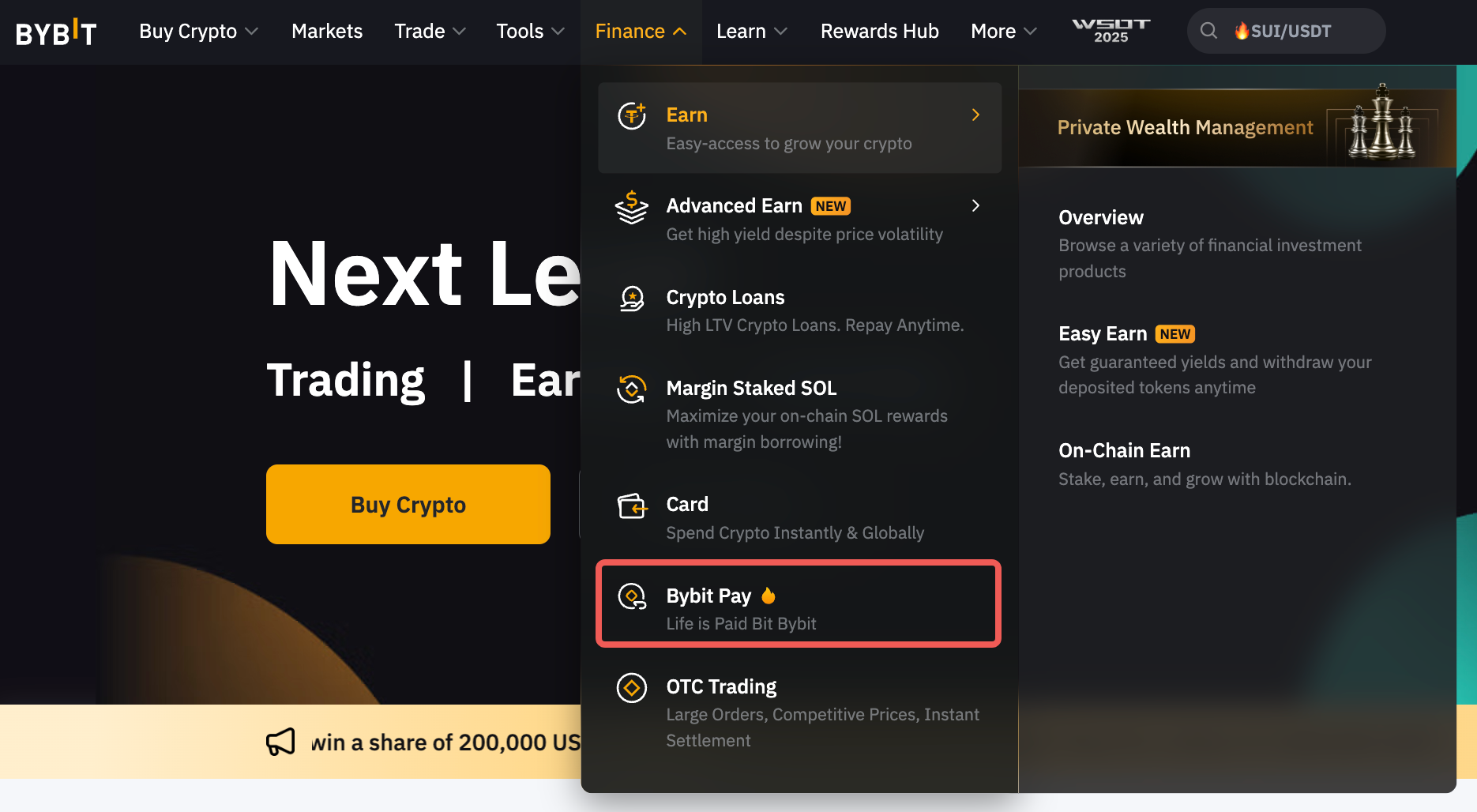
Step 1: Click on Finance in the upper left corner of the navigation bar on the Bybit page, then select Bybit Pay to enter the Bybit Pay page.
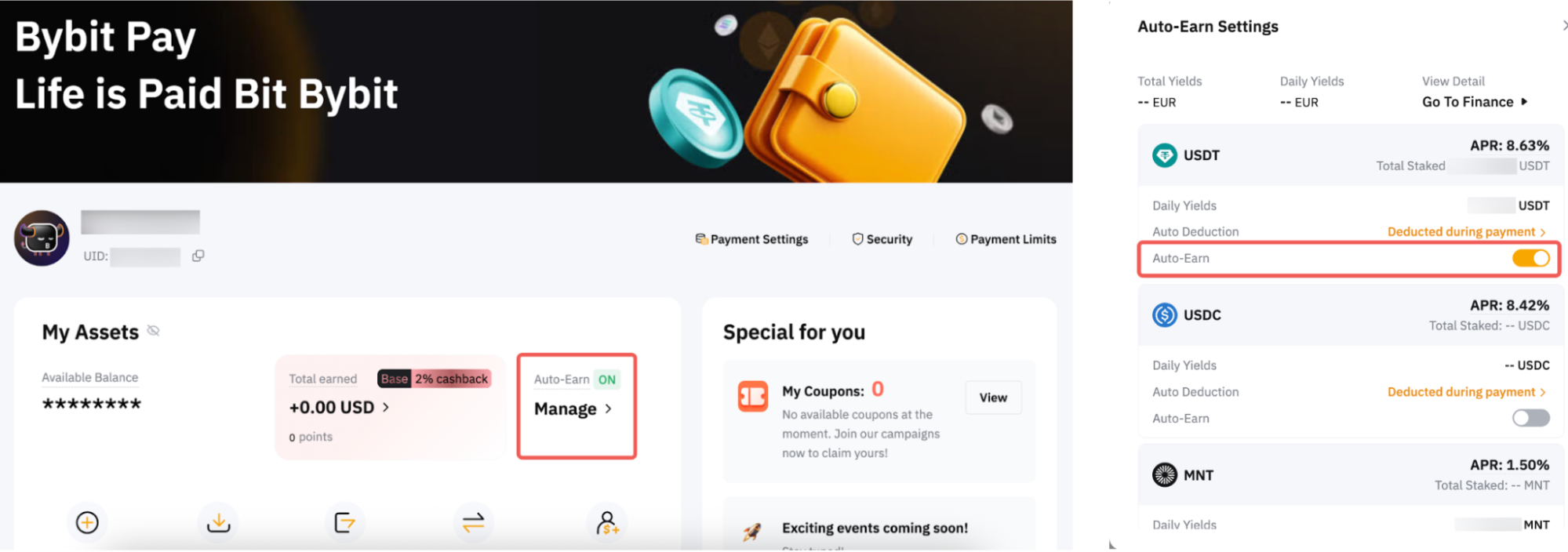
Step 2: On the Bybit Pay asset page, find the Auto-Earn switch button and toggle it on.
By enabling the Auto-Earn button, the transferable balance of your payment crypto asset (shown on each currency) in your Funding Account will be automatically subscribed to Flexible Term plans the next day.
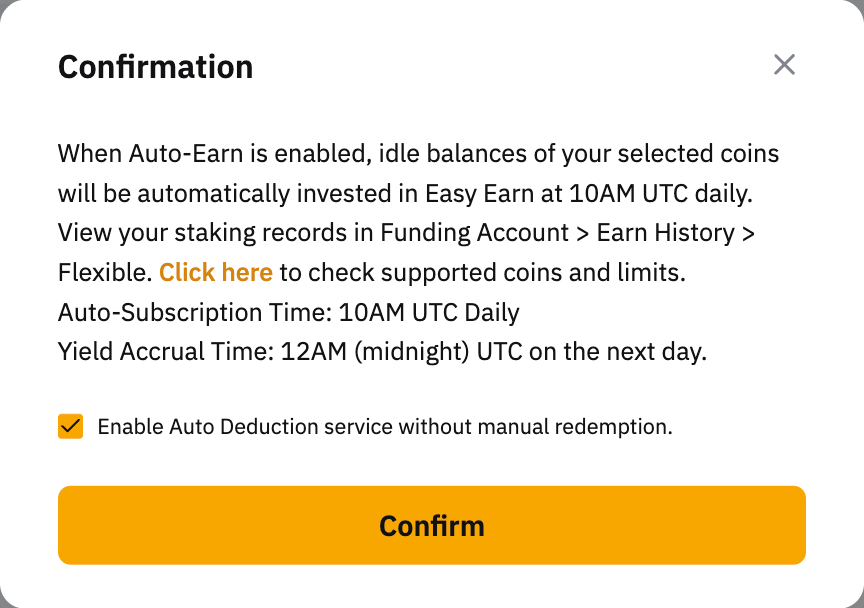
Step 3: Once you've made your selection, please read carefully and make sure you acknowledge the information. Then, click on Subscribe Now to enable this function.
Step 4: If you would like to have the selected payment crypto asset and the payment assets invested in Flexible Term be deducted for Bybit Pay payments, you may activate the Auto-Deduction button.
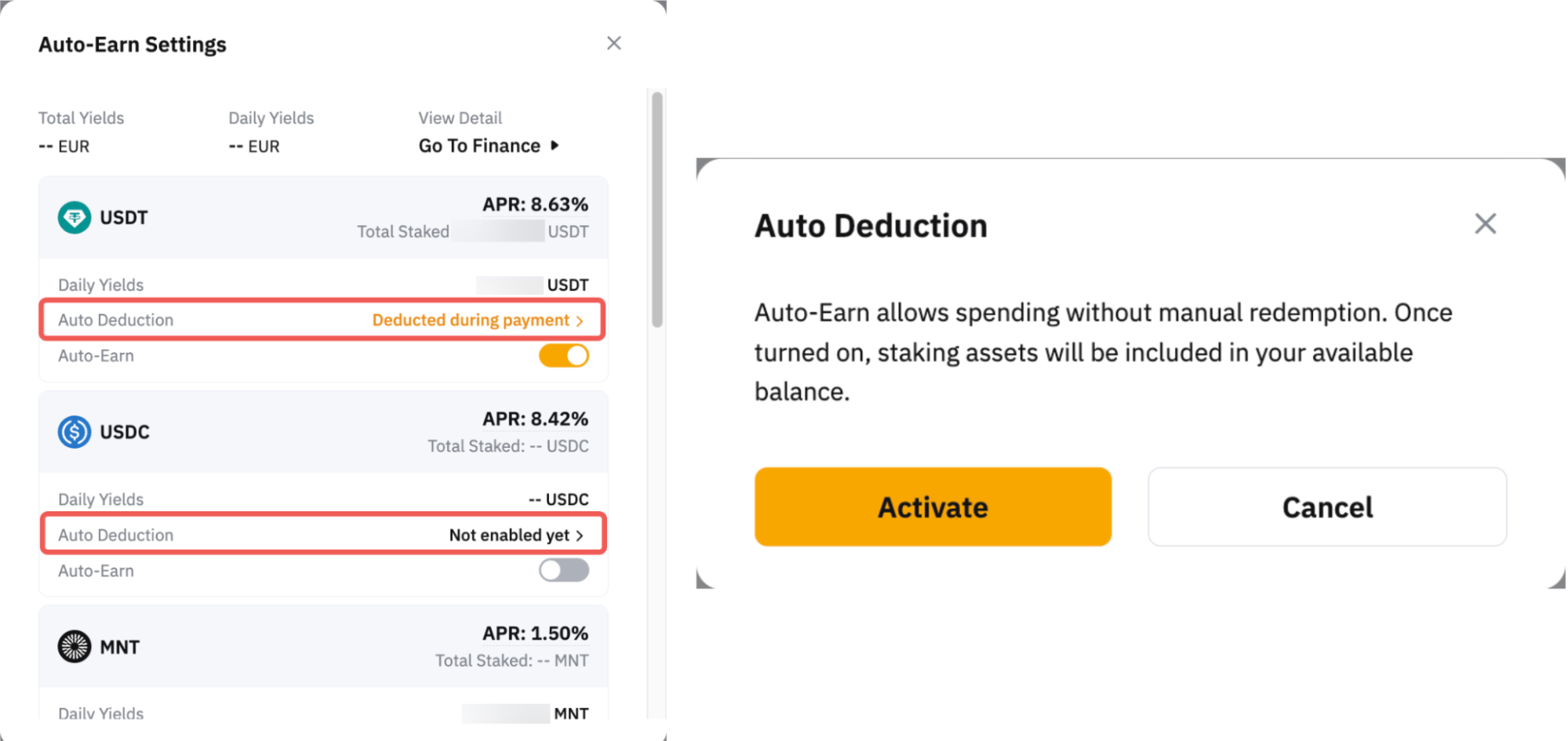
When the Auto-Earn function is disabled, assets subscribed to Flexible Term plans will not be invested. For more details, please refer to this article.
Past Transactions Records
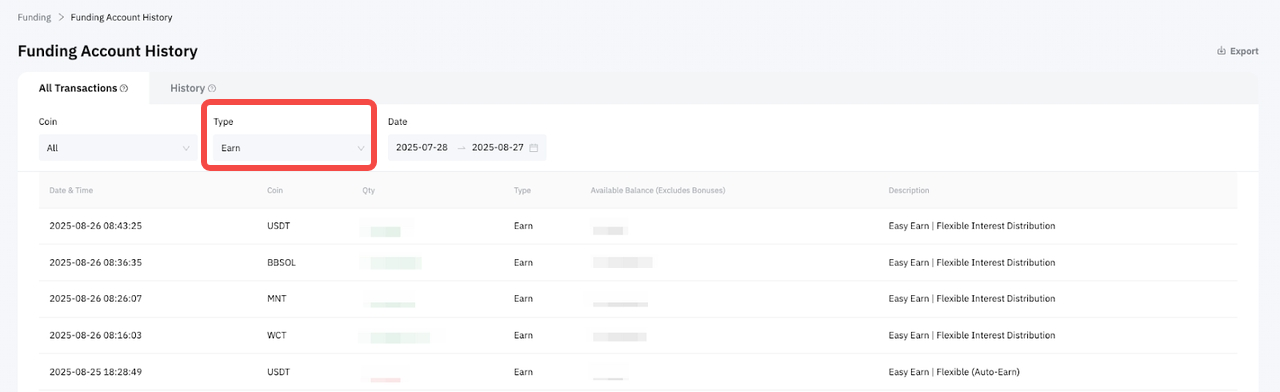
You can view your successful transactions in your Funding Account History under Earn.
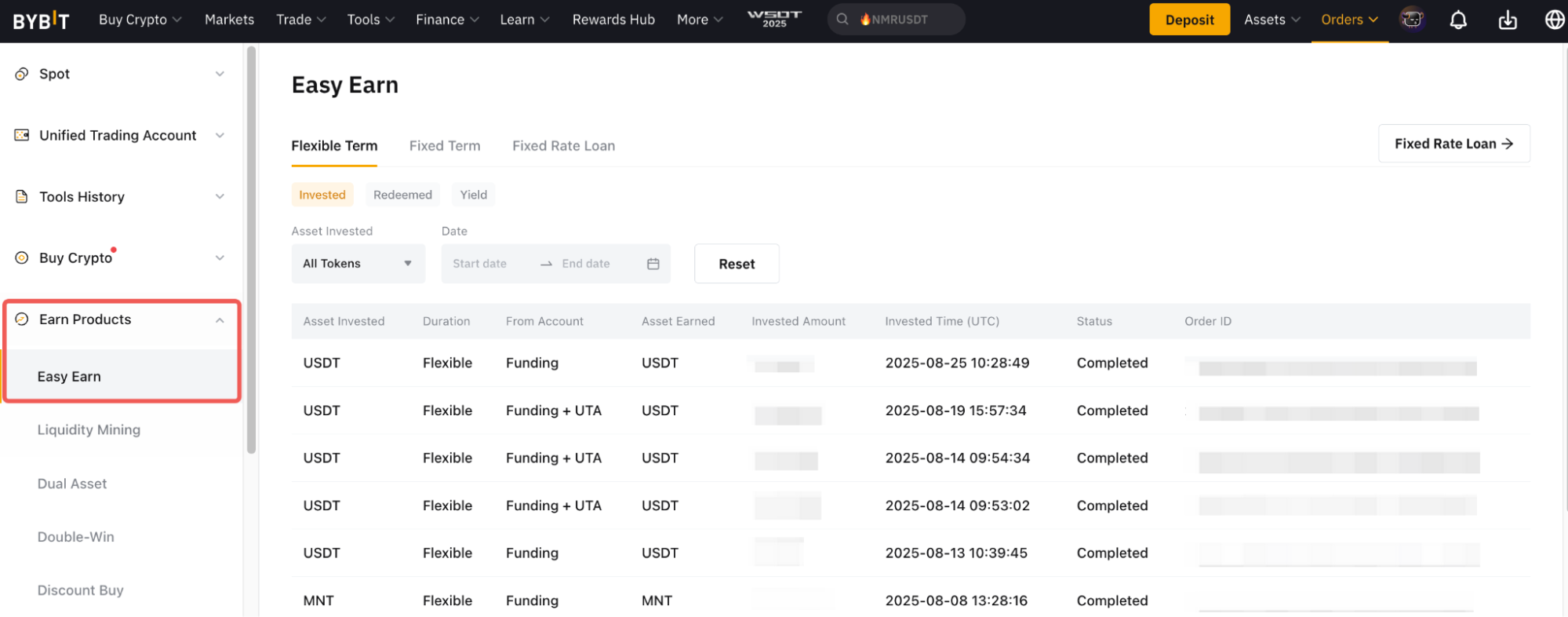
Additionally, you can find your order records under Earn Order → Easy Earn.
For more information on how the daily yield is calculated and answers to other common questions, please refer to the FAQ — Easy Earn.